INTRODUCTION
Imagine this: You receive a critical STEP file from an engineer. You double-click it, and your laptop fans scream like a jet engine before the screen freezes. You don't have a $5,000 workstation with a dedicated NVIDIA Quadro card—you just have a standard business laptop. Does this mean you can't do your job?
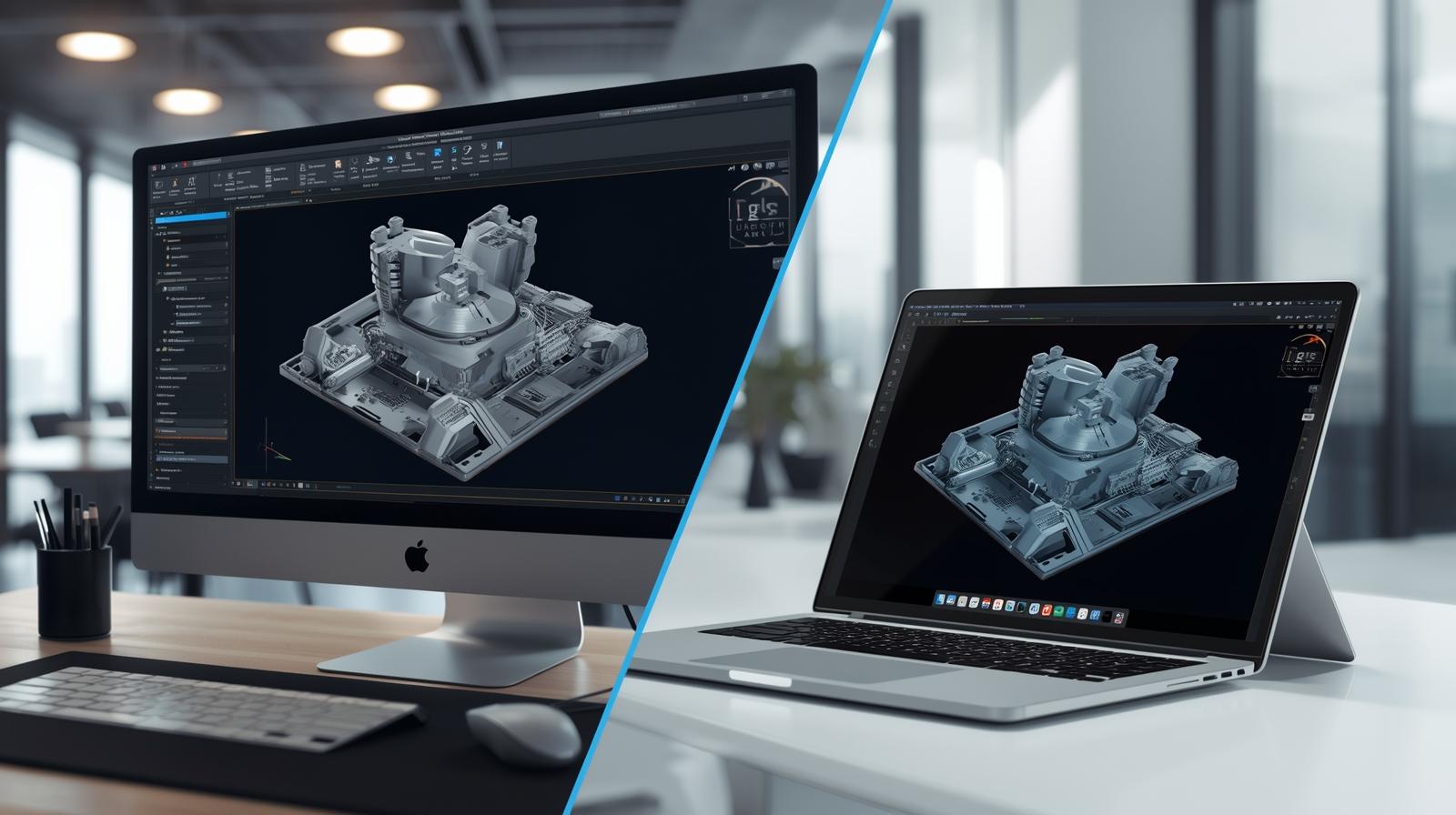
Not anymore. In the past, viewing complex 3D models required heavy hardware and expensive software licenses. Today, cloud-native technologies and WebGL advancements have democratized access to 3D design data. Whether you are a project manager, a salesperson on the road, or a client reviewing a prototype, you can now view, rotate, and inspect massive CAD assemblies without a dedicated GPU.
This guide explores the technical shift away from local rendering, the security risks of "free" tools, and the professional solutions that let you view 3D files on anything from a Chromebook to an iPad.
Table of Contents
- Why Your Computer Struggles with CAD (The Technical Reality)
- The Solution: Browser-Based Viewing & Cloud Rendering
- Top Methods to View CAD Without High-End Hardware
- Practical Workflow: Collaborating Without Workstations
- Conclusion
Why Your Computer Struggles with CAD (The Technical Reality)
To understand the solution, we must first diagnose the bottleneck. Traditional CAD software like SolidWorks, CATIA, or AutoCAD relies heavily on local rendering. This means your computer's hardware is responsible for calculating the geometry, lighting, and textures of the 3D model in real-time.
The GPU vs. CPU Bottleneck
Most standard laptops rely on "integrated graphics" (built into the CPU), which are designed for video streaming and spreadsheets, not calculating millions of polygons. When you try to open a 500MB assembly file:
- RAM Saturation: The uncompressed geometry fills your system memory instantly.
- Graphics Overload: Integrated graphics cannot process the OpenGL commands fast enough, leading to lag or crashes.
- Software Incompatibility: Many desktop viewers simply won't install if they don't detect a certified graphics card.
Industry Insight: A 2024 hardware survey indicates that equipping a non-engineering employee with a CAD-capable workstation costs an average of $3,500 upfront, plus IT maintenance [1]. For a team of 10, that is a $35,000 expense just to view files.
The Solution: Browser-Based Viewing & Cloud Rendering
The game-changer in 2024-2026 is the shift from local processing to browser-based rendering. This technology utilizes WebGL (Web Graphics Library) and server-side processing to display 3D content.
How It Works
Instead of your laptop doing the heavy lifting, the process is split:
- Server-Side: The heavy geometry processing happens on a remote cloud server equipped with massive enterprise GPUs.
- Client-Side: Your browser receives a lightweight, optimized stream of data that it can easily render, even on a tablet or phone.
This eliminates the need for installations and high-end hardware. You simply open a link, and the model appears.
💡 Pro Tip: The Universal Access Advantage
If your team struggles with hardware limitations, tools like Vizcad are designed specifically for this "no-GPU" scenario.
Vizcad's Universal Browser-Based Access allows you to open STEP, STL, and OBJ files instantly in Chrome, Edge, or Safari. Because the heavy lifting is optimized for the web, you get smooth rotation and zooming on standard business laptops—no $3,000 graphics card required. It bridges the gap between engineering data and non-technical stakeholders.
👉 Try Design Sharing with Viz-CAD Now — Free
Top Methods to View CAD Without High-End Hardware
Not all viewers are created equal. Here are the three most effective categories for viewing files without a GPU, ranked by professional utility.
1. Cloud-Native Collaboration Platforms (Recommended)
These are professional SaaS platforms designed for teams. They ingest native CAD formats (STEP, IGES, SolidWorks) and convert them into viewable web formats automatically.
- Pros: No software to install, high performance, version control included.
- Cons: Requires internet connection.
- Best For: Project managers, sales teams, and client reviews.
2. Lightweight Desktop Viewers
Some software vendors offer "light" versions of their tools (e.g., eDrawings Viewer). While better than full CAD, they still rely on your local hardware.
- Pros: Can work offline.
- Cons: Still requires installation; performance suffers on large assemblies without a GPU.
3. Mobile/Tablet Apps
Modern tablets (like the iPad Pro) have surprisingly powerful graphics chips. Using a dedicated app can be a good stopgap for field workers.
- Pros: Highly portable.
- Cons: File transfer is clumsy (emailing large files); limited measurement tools.
Practical Workflow: Collaborating Without Workstations
Viewing is rarely a solo activity. Usually, you view a file to approve a design, catch a mistake, or sell a product. Here is how to build a GPU-free workflow for your team.
Step 1: Centralize Your Files
Stop emailing 50MB attachments. Email servers often block them, and they create "version confusion" (e.g., final_design_v3_REAL_FINAL.step). Use a cloud repository where the single source of truth lives.
Step 2: Enable Real-Time Feedback
Static screenshots don't tell the whole story. You need to rotate the model to see the internal clearance or the back panel wiring.
🚀 Expert Solution: Vizcad for Teams
Vizcad isn't just a viewer; it's a collaboration engine.
- Smart & Instant Sharing: Instead of attaching a heavy file, you generate a secure link. Your client clicks the link and views the model immediately—no account setup needed.
- Real-Time Collaboration: Need to point out a flaw? Invite your engineer to a shared workspace. You can rotate the model on your iPad while they view it on their desktop, adding comments and tracking changes in real-time.
- Render Studio: Need a marketing image? You don't need a render farm. Vizcad Studio lets you generate photorealistic renders directly in the browser, saving hours of setup time.
👉 Go to the Viz-CAD Dashboard and Invite Your Team
Conclusion
The days of needing a dedicated workstation just to view a 3D model are over. The barrier to entry for CAD data has been lowered by browser-based technologies and cloud rendering.
However, the method you choose matters. While free online converters offer a quick fix, they pose significant security risks. Lightweight desktop apps are safer but still depend on your hardware. For modern professionals, cloud-native platforms offer the best balance of performance, security, and collaboration.
Key Takeaways:
- Hardware is no longer a limit: WebGL allows standard laptops and tablets to view complex 3D data.
- Collaboration is key: Viewing is useless without the ability to comment, share, and approve.
Don't let hardware limitations slow down your project. Embrace the cloud and keep your workflows moving.
References
[1] Jon Peddie Research (JPR) – Workstation Market Trends and Hardware Costs (2024)
[2] Statista – SaaS Market Growth in Engineering Software (2025)
[3] Khronos Group – WebGL 2.0 Adoption Statistics (2024)
Further Reading
Khronos Group – WebGL Standards
NVIDIA – CloudXR Technology Explainers
CISA – Data Security Best Practices
About the Author

Ferhat RudvanoğullarıMechatronics Engineer
Ferhat RUDVANOĞULLARI is a Mechatronics Engineer and the founder of Viz-CAD. Throughout his career, he has transferred the engineering perspective and system development experience gained from R&D projects into Viz-CAD, aiming to redefine engineering design processes through web-based solutions. Recently, he has focused his work on web-based 3D technologies and artificial intelligence applications, developing accessible, scalable, and innovative design infrastructures by bringing engineering tools to the browser environment.